


You can download the Belagroprombank application in the Play Market and AppGallery
The Internet Banking system is designed for full-fledged remote servicing of private clients. This is one of the most convenient, simple and secure ways to manage your finances 24/7! Connection and use of Internet banking of JSC Belagroprombank is free.
Capabilities


It's easy to start using!


How to register in Internet banking
Step 1 - Type the address https://www.ibank.belapb.by in the address bar of your web browser.
Step 2 - Select the «Registration» button and the registration option for bank client.
Step 3 - For residents of the Republic of Belarus: enter the identification number of your identity document and your phone number. If everything is in order, the system will send an SMS with a code to this number.
- For non-residents of the Republic of Belarus: enter the series and number of your identity document, mobile phone number (including a foreign operator), select your country of residence, and enter your date of birth. If everything is correct, the system will send an SMS with a code to this number.
Step 4 - Fill in the required fields, enter the SMS code, read the terms of the service agreement, and click «Continue». Registration is complete.
Users of the Internet banking system can use the mobile application (Mobile Internet Banking service) with the same login and password.
Step 1 - Complete the IIS self-registration process here.
Step 2 - Type the address https://www.ibank.belapb.by in the address bar of your web browser.
Step 3 - Select the «Registration» button and the registration option for clients of other banks (via IIS).
Step 4 - Fill out all the required fields and click «Login»..
Documents
Public offer for the conclusion of a service agreement
INSTRUCTIONS FOR WORKING WITH THE INTERNET BANKING SYSTEM
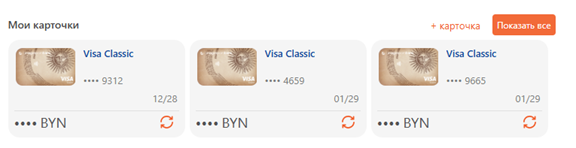
The desktop contains blocks with information about products and a block with payment templates.
To show or hide a product block, select the desired block in the filter at the top of the Desktop.

To view all products, click the "Show All" button.
To register a new product, click the corresponding button in the product block, for example, “+ card”.
To quickly navigate to the product management section, click on the desired product.
To pay for services, open the "Pay for Services" section and select the card you want to use for payment from the drop-down menu.
If you have selected a card other than the default one, click the "Update list of services" button to update the list of services available for payment with this card.
To quickly find the service you need, use the advanced search feature. You can search for a service by name, city, bank code, and other parameters.
If you can't find the service you need, use the "Custom Payment" menu item, which is located in the "Bank Services" section or the "Payments" sidebar. This allows you to manually enter the recipient's details and make a payment to the organization.
To confirm the operation, enter the key.
After completing a transaction, you can print the receipt immediately or at any other time in the "Transaction Archive" section.
For your convenience, frequently paid services can be quickly found in the "Payment for Services" section - "Recently Paid" or "Signed Payments".
Recently paid payments – a list of payments made via the Internet banking system over the last two months for which the “Recently paid” option is selected.
There is no need to search for such payments again in the service tree – they are available in the “Recently paid” tab.
If a payment from the list of recently paid ones is not used within two months, it is deleted automatically.
Signed payments – a list of payments made through the Internet banking system for which the “in Signed payments” option is selected.
There is no need to search for such payments again in the service tree – they are available in the “Signed Payments” tab.
The most recently paid and signed payments are used to make one-click payments and recurring payments.
A payment template can be created at the last step of paying for a service before entering the key by clicking the "Save as template" button.
You can give the template any name, for example, “My phone” or “Saving up for a vacation.”
Saved templates are available on your Desktop or in the Pay for Services section by clicking the View Templates button.
To use a template, select it and click the "Create payment based on" button. The payment will be created using the details saved in the template.
You can also create a payment based on a transaction from the "Transaction Archive" section.
One-click payment allows you to quickly pay for several services at once.
Transactions included in the list of recently paid or signed payments are available for one-click payment.
To pay for a group of services, you can create a payment group template. To do this, click "Save as template" at the last payment step before entering the payment key.
Saved templates are available on your Desktop or in the One-Click Payment section by clicking the View Templates button.
Periodic payment allows you to automatically pay for mobile services according to a set schedule.
The payment amount can be set as a fixed amount or equal to the amount billed by the service provider at the end of the month.
When setting up a schedule, choose a time when your card typically has sufficient funds to complete the transaction, such as the day after you receive your salary.
If there are insufficient funds in the account, the transaction will not be performed.
You can activate the service in the “Payments” – “Periodic Payment” section, following the on-screen instructions.
This feature allows you to remove unused payments from the lists of recently paid and signed payments.
Unused payments from the list of recently paid ones are automatically deleted after two months.
You can get a card statement in the “Cards” – “Card Management” section by selecting “Account statement with card”.
Select the account and the period for which you need information. Statements are available for a period of up to three months.
The extract can be saved in * .doc or * .xls format.
To view transactions on an additional card, generate an account statement and find the last four digits of the additional card number used to perform the transaction in the "Payment Method" field.
Please note: it may take several days between the transaction being completed and it being reflected in your account.
If you need to view transactions that have already been completed but not yet debited from your account, use the "Mini-statement" option in the "Cards" - "Card Management" section.
The mini-statement contains information on the latest authorization requests for the card – no more than 13 requests for a period of no more than 9 days, excluding balance viewing operations.
A mini-statement is a paid service.
The card can be blocked, for example, if it is lost.
To do this, go to the "Cards" section, select the desired card, click the "Block Card" button and follow the further instructions.
A card previously blocked via the Internet banking system can be unblocked in a similar way.
The Transaction Notifications service allows you to receive notifications about selected types of card transactions on your mobile phone.
This service is especially useful when traveling abroad, where the risk of fraudulent transactions increases.
This service is a paid service for most cards.
To activate the service, go to the "Cards" - "Service Management" section and select the icon next to the desired card.
Select a service package, mark the events you want to receive notifications about, select your service provider, and enter the phone number to receive notifications.
You can change the service parameters using the “Change” button, and disable the service using the “Disable” button.
BELKART - Internet Password is a technology defined by the rules of the BELKART payment system and intended for additional confirmation of transactions carried out by BELKART cardholders on the Internet.
To activate BELKART- InternetPassword, go to the “Settings” section – “BELKART- InternetPassword”.
Select a card and click "Internet transactions".
Enter your phone number, read the public offer of JSC Belagroprombank for concluding a current (settlement) bank account agreement, access to which is provided through the use of a bank payment card concluded with individuals, and the rules for using bank payment cards.
Click Continue and enter the key.
To view your loan statement, go to the "Loans" section, select "Loan Statement," specify the desired loan and the statement period (up to three months), then click the "Get Statement" button.
To view your loan balance and the next amount due for repayment in the current period, in the "Loans" section, select the desired loan and click "Detailed loan information."
To view a deposit statement, go to the "Deposits" section, select "Account Statement", specify the desired deposit and the statement period (no more than three months), then click the "Get Statement" button.
Frequently asked Questions
In case of problems with displaying individual pages of the Internet Banking system, we recommend deleting temporary Internet files (cache) and files (cookies) in the browser you are using. For Microsoft Edge, Mozilla Firefox, Opera, Google Chrome browsers, press Ctrl+Shift+Del, select the corresponding marks in the screen form and click delete.
In this case, you can enter the Internet banking system in one of the following ways:
- Re-register for the online banking system using the «Forgotten login or password feature».
- By logging into Internet banking according to the IIS (Interbank Identification System). On the main page of Internet banking, you must click "IIS" / "Login using IIS data (login and password)" and then allow access to your data.
- Re-register in the Mobile Application. To do this, on the screen for entering a PIN code when entering the application, you must click on the question mark / “Change user” / “Registration”. Then you need to specify the data: identification (personal) passport number, mobile phone number, then select “I don’t remember my login and password”, assign a new login, password and a new mobile key.
When creating a new login, password and mobile key, at least 2 characters must change in comparison with the previously set login/password/mobile key.
Please note! When changing the credentials (login and password) in the mobile application, the data for entering Internet banking is changed automatically.
Answer: To clarify the reason for the blocking and remove it (if possible), we recommend contact the bank's Contact Center or the bank's branch.


